Chronoscape
Your digital chronicler for TTRPG adventures.
Chronoscape Features
A detailed guide to all the features in Chronoscape.
Creating Campaigns
- Campaign Name
- Game Master (Optional): Useful to add for GM Events in a session.
- Description (Optional): Just additional content for storytelling
- Campaign Start Date: Required, just to keep for tracking when sessions happened and when the Campaign happened
- Campaign End Date (Optional): You only put this in when the campaign is over. This will automatically add the campaign to the Ended Campaigns tab.
- In-Game Start Date: This is really important. This defines when (in the campaign time) the story starts. This is the starter for everything, this is how we track time moving through the campaign, by adding events to sessions.
- Cover Image: Images can be uploaded to showcase your campaign
- Custom Calendar Settings (Optional): This is not meant to be in-depth (for now), you have the ability to edit the name of the months and the name of the days of the week. You will still need to follow the Gregorian calendar. If you make these changes, those names will be replaced with the names you specified when adding events.
- Make Campaign Public: Disabled for free account, this allows you to share your campaign publicly, in addition to, allowing your campaign to integrate with Questscape and Worldscape.
- Export: You have the option to export the campaign to a JSON file. This is good for backups but can also be used for Imports into Questscape, and Worldscape saving you time having to retype campaign data as well as players and characters.
Creating your first Session
- Session Characters: The first session will always begin with characters. This allows the game to track who was involved in what events.
- Manage Characters: How you add/remove characters to the campaign
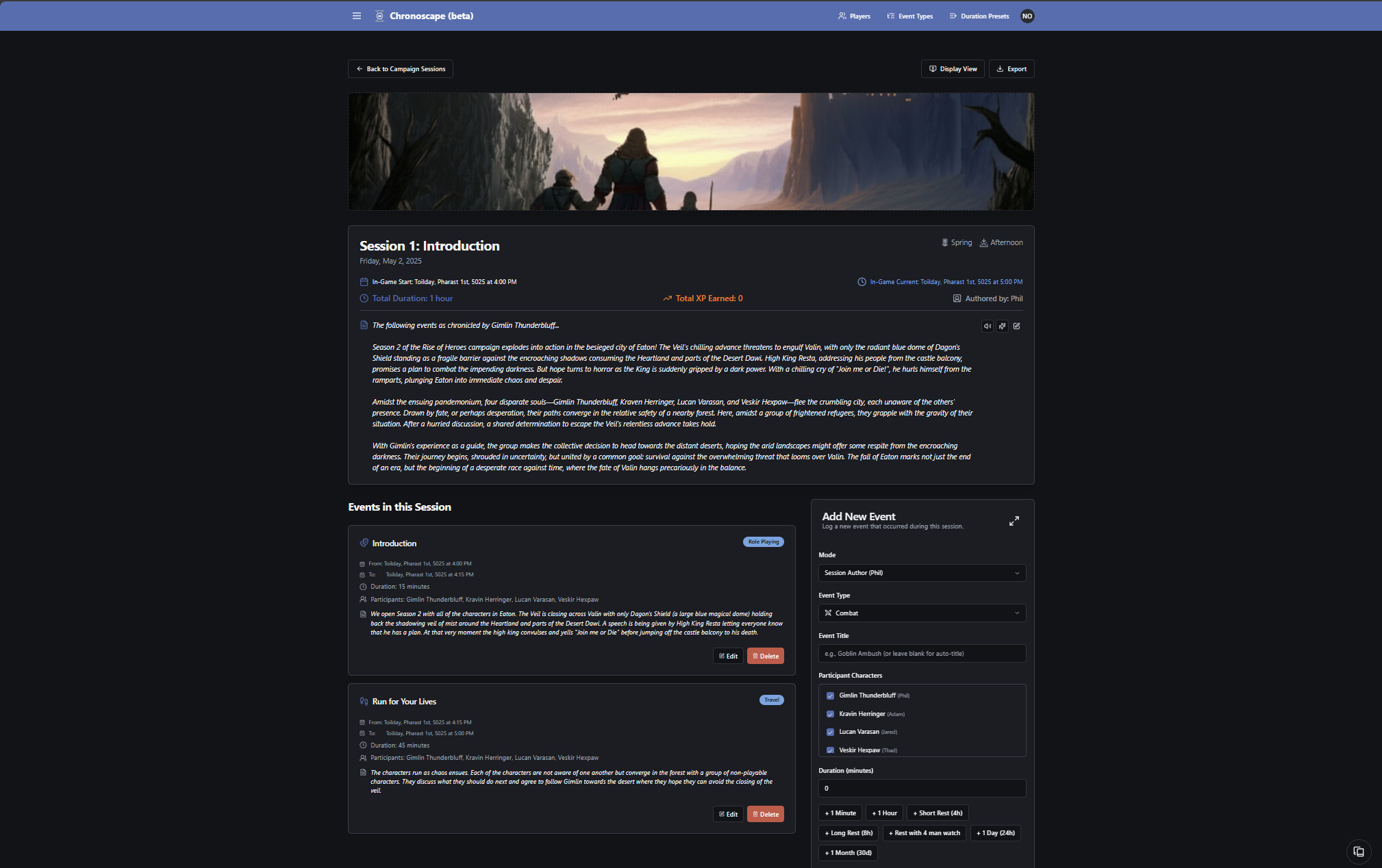
- Session Sub-Title (Optional): Based on how we play this will be the first part we start at the beginning of each session. Each session we designate one player to chronicle the session. That player will log into Chronoscape and create the session. The name is optional because we usually won’t know the title until the end of the session. Don’t worry, each new session will default to an incremental session number!
- Session Date: This will default to today's date, since that is usually when the player is creating the session, but can be changed if you worked on the session after the fact.
- Author (Optional): This is the person who authored the session. This is really for historical purposes as our group likes to look back at who authored what sessions. This also helps with player designation
- Cover Image (Optional): Images can be uploaded to showcase your session. This is usually done after the session.
- Summary (Optional): We usually write this after the session has completed. This is also used for recaps when we come to the next session.
Creating your first Event
- Event: Events drive the functionality of the app. Each Event will track time to allow the progression of time through the Campaign.
- Event Mode: This allows you to specify if the GM or the Player is authoring the event. This was created for our GM, because he liked to add “cut-scenes” to our sessions. These usually did not progress any time, so the event duration can be left at 0. But he could also provide an event that did progress time. Otherwise, the event is a player event.
- Event Type: These are options provided by the Event Type at the top of the menu. These are configurable. If the Event Mode is GM, you can add specific GM Only Event Types as well. See Event Types Feature below.
- Event Title (Optional): Just like the Session Title, we usually leave this blank and come up with a title after the event has taken place.
- Event Participants: This will default to the previous events participants. This will usually be all characters, but if a player is not present you can also exclude the player. We usually tie a reason into the event of why the character is not with us.
- Duration: This is the most important part. Duration is ultimately how we track time progressions. It can be added manually or with the duration presets. Note that the duration presets are also configurable from the menu. This will allow for different TTRPG rules.
- XP Gained: This was added later but has proven pretty invaluable as it calculates the total for the session as well as the total for the campaign.
- Description: This is obviously for tracking the event details. Our group does not try to go crazy on this. We just add significant information. People, places, things that we encountered at the event.
Additional Details
- Event Types: Event types can be added/edited/removed based on your campaign preference. You can Add custom icons and whether the event type is a GM only event or not.
- Duration Presets: Allows for preconfigured durations of time. These can be added/edited/removed based on the campaign preference.
- Session Display View: This was based on our personal experience. Our GM wanted a way to present the previous session summary on his TV as a recap. This button simply enlarges the text for better viewing.
- Session Export: Our GM uses Obsidian and wanted a way to collect the session details. The export is the solution for that. It exports a file in Markdown so he can easily import it into Obsidian.
Campaign View Reports
- Campaign Summary: This is where you can take the collection of sessions and summarize them into the Campaign Summary.
- Timeline: A visual tool for seeing all of the session events and dates in the world to better see how events progressed over time in the campaign. Events are clickable too!
- Charts: For all the data lovers! Our group came up with different charts we thought would be interesting as the campaign progressed.
- Canon: This was a way to track proper nouns in the campaign. We found that each player doing the events would misspell different places or NPCs, etc. So the Canon was a way for the GM to add Canon for the Find and Replace tools. See below. In addition, if you have a paid account, the Canon can be pulled from Worldscape!
- Canon Suggest: This is a neat tool. It will scan the current campaign and try to suggest canon terms and potential misspellings.
- Find and Replace: This tool is exactly what it sounds like. It will scan all the events from all the sessions and summaries, if it sees a misspelling from the Canon, it will replace it with the correct word.
Campaign Search
On the Campaign details page at the top is a search bar. It will search through all the events and session summaries and show results. If you click a result, it will navigate to that result and highlight the word you searched for.
User profile Menu - Top right where your email or gmail profile image is located
- Account Settings: When you click account settings, you will be taken to a page that shows your account details as well as your subscription. This also has the following configurations:
- Data Management: This allows the player to download an entire copy of their data in JSON format. This also allows a player to restore their data from that backup.
- App Menu Visibility: This allows the configuration of the apps under the scapers toolkit menu (the menu at the top left).
- Change your password: This allows the user to update their password if they signed up with an email and password. This is not a feature for google logins.
- Documentation: This was my first stab at trying to document the basics of how Chronoscape works.
- Provide Feedback: This is a way to let me know about any feedback as far as bugs, features, or enhancements you would like addressed.
- Theme: This allows you to set the theme to dark or light mode based on your preference.
Other Notable Pages
- Release Notes: This is where I track all of my updates and versions to the app.
- Buy me a coffee: I really do like coffee, but in addition, a one time donation of 7 dollars allows you to move into a paid tier and unlock additional features. I will also take a picture of my coffee beans I purchased with said donation!
- The Scapers Toolkit LLC: A link to my homepage where I manage the suite of apps I call The Scapers Toolkit. Go there or any important updates on development!